Overview
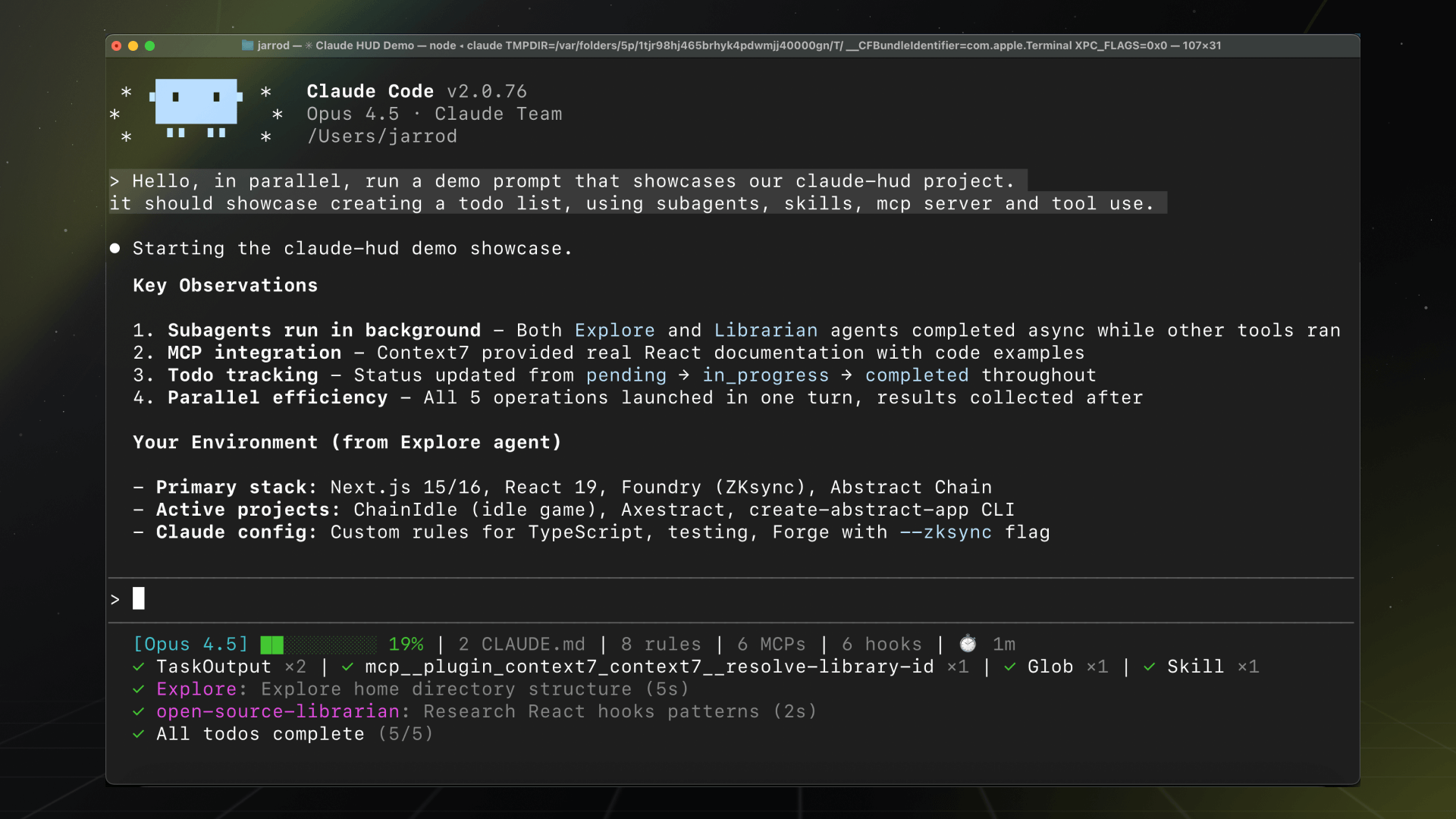
Claude HUD is a statusline plugin for Claude Code that displays real-time session information directly below your input prompt. It shows context window usage, active tools, running agents, and todo progress — giving you full visibility into what Claude is doing and how much capacity remains.
Why Claude HUD
When working with Claude Code, you’re flying blind by default. You don’t know how full your context window is until Claude tells you it’s running out. You can’t see which tools are being invoked or whether a sub-agent is still running. Claude HUD solves this by surfacing session state as a persistent, always-visible statusline.
Key benefits:
- Avoid context blowouts — watch your context usage climb in real time and take action before hitting the limit
- Understand tool activity — see exactly which files Claude is reading, editing, or searching
- Track agent progress — know when sub-agents are running and what they’re working on
- Monitor task completion — follow todo progress as Claude works through your checklist
- Stay aware of rate limits — see your usage allowance consumption (Pro/Max/Team plans)
What You See
Claude HUD renders up to four lines below your input prompt. The first two lines are always visible; the rest appear when relevant activity is detected.
Line 1: Session Info
[Opus | Max] │ my-project git:(main*)
This line shows:
- Model name — which Claude model is active (Opus, Sonnet, Haiku)
- Plan name — your subscription tier (Pro, Max, Team) or
Bedrockfor AWS users - Project path — the current working directory (configurable from 1 to 3 levels deep)
- Git branch — current branch name with optional dirty indicator (
*), ahead/behind counts, and file stats
Line 2: Context and Usage
Context █████░░░░░ 45% │ Usage ██░░░░░░░░ 25% (1h 30m / 5h)
The context bar uses color coding to indicate health:
| Context Level | Color | Meaning |
|---|---|---|
| 0–70% | Green | Healthy — plenty of room |
| 70–85% | Yellow | Warning — consider wrapping up or compacting |
| 85%+ | Red | Critical — token breakdown shown automatically |
The usage bar (right side) shows your rate limit consumption for the current billing period. A 7-day rolling usage appears when it exceeds the configured threshold (default: 80%).
Line 3: Tool Activity (Optional)
◐ Edit: auth.ts | ✓ Read ×3 | ✓ Grep ×2
Shows currently running tools with a spinner (◐) and completed tools with a checkmark (✓). Tool names are aggregated by type with counts when multiple invocations occur.
Line 4: Agent Status (Optional)
◐ explore [haiku]: Finding auth code (2m 15s)
Displays active sub-agents with their type, assigned model, description, and elapsed time. Agents appear when Claude delegates work to sub-tasks.
Line 5: Todo Progress (Optional)
▸ Fix authentication bug (2/5)
Tracks the current in-progress task from Claude’s todo list with a completion counter showing done versus total items.
How It Works
Claude HUD uses Claude Code’s native statusline API — no separate terminal window, no tmux, no screen splitting. It runs as a plugin that Claude Code invokes approximately every 300 milliseconds.
Claude Code → stdin (JSON) → claude-hud → stdout → terminal statusline
                           ↘ transcript (JSONL) → tool/agent/todo parsing
The plugin draws from two data sources:
- stdin JSON — Claude Code passes model information, token counts, and the context window size directly. This data is native and accurate (not estimated).
- Transcript JSONL — Claude HUD reads the session transcript file to extract tool usage, agent activity, and todo state. It matches
tool_useblocks totool_resultblocks by ID to determine running versus completed status.
Additionally, Claude HUD reads configuration files (~/.claude/settings.json, CLAUDE.md files, .mcp.json) to count rules, MCP servers, and hooks when the config counts display is enabled.
Quick Start
Getting Claude HUD running takes three commands inside a Claude Code session:
Step 1: Add the marketplace
/plugin marketplace add jarrodwatts/claude-hud
Step 2: Install the plugin
/plugin install claude-hud
Linux users: If you encounter
EXDEV: cross-device link not permitted, set TMPDIR before launching Claude Code:mkdir -p ~/.cache/tmp && TMPDIR=~/.cache/tmp claudeThen run the install command in that session. This is a known Claude Code platform limitation.
Step 3: Configure the statusline
/claude-hud:setup
The HUD appears immediately — no restart needed.
Configuration at a Glance
Claude HUD ships with three presets to match different preferences:
| Preset | What’s Shown |
|---|---|
| Full | Everything — tools, agents, todos, git, usage, duration |
| Essential | Activity lines + git status, minimal info clutter |
| Minimal | Core only — model name and context bar |
Run /claude-hud:configure at any time to switch presets or toggle individual elements. For advanced settings like custom colors and thresholds, edit the config file directly at ~/.claude/plugins/claude-hud/config.json.
See the Configuration guide for the full options reference.
Display Formats
The project path supports multiple depth levels:
1 level (default):  [Opus] │ my-project git:(main)
2 levels:           [Opus] │ apps/my-project git:(main)
3 levels:           [Opus] │ dev/apps/my-project git:(main)
Git status indicators provide additional context:
Dirty indicator:    [Opus] │ my-project git:(main*)
Ahead/behind:       [Opus] │ my-project git:(main ↑2 ↓1)
File stats:         [Opus] │ my-project git:(main* !3 +1 ?2)
File stat symbols: ! = modified, + = added/staged, ✘ = deleted, ? = untracked. Counts of zero are omitted.
Context Display Options
The context value can be shown in three formats:
| Format | Example | Description |
|---|---|---|
percent |
45% |
Percentage of context used |
tokens |
45k/200k |
Current tokens / max tokens |
remaining |
55% |
Percentage of context remaining |
At high context usage (85%+), a token breakdown appears automatically showing input versus cache token distribution.
Usage Limits
Usage display is enabled by default for Claude Pro, Max, and Team subscribers. It shows your rate limit consumption alongside the context bar:
Context █████░░░░░ 45% │ Usage ██░░░░░░░░ 25% (1h 30m / 5h) | ██████████ 85% (2d / 7d)
The 7-day rolling usage appears when consumption exceeds the configured threshold (default: 80%).
Requirements:
- Claude Pro, Max, or Team subscription (not available for API-only users)
- OAuth credentials from Claude Code (created automatically on login)
API users and AWS Bedrock users do not see usage limits, as they operate under different billing models.
Requirements
- Claude Code v1.0.80 or later
- Node.js 18+ or Bun
Next Steps
- Getting Started — step-by-step installation with screenshots
- Configuration — full options reference and example configs
- HUD Elements — detailed breakdown of every display element
- Architecture — how Claude HUD works under the hood
- Troubleshooting — fix common issues with installation and display